Code Block Configuration
You can write Map of Content (MOC) queries manually in any markdown file by creating a code block with the language set to moc and adding a YAML configuration.
Syntax Overview
A basic moc code block looks like this:
```moc
folder: Diary
element: List
filter: contains("MOC")
recursive: true
```
Configuration Keys
folder (Required)
The folder path relative to the vault root where the plugin will search for markdown notes.
- Examples:
Diary,Projects/Marketing, or""(empty string to search the entire vault). - Supports dynamic parameters:
{{this.filename}},{{this.folder}},{{this.path}}(see Dynamic Parameters).
element (Required)
The specific markdown element to extract from matching notes. Must be one of the following:
List: Bulleted or numbered list items.Task: Checkbox task items.Heading: Note headers (H1 to H6). The entire section (heading + body until the next same-level heading) is extracted.Paragraph: Markdown paragraph blocks.Blockquote: Markdown blockquotes.
filter (Required)
The matching condition applied to each candidate element. Supports both primitive functions and complex logical expressions.
- Supports dynamic parameters:
{{this.filename}},{{this.folder}},{{this.path}}.
Primitive condition functions:
- String & text matches:
-
contains("term"): Evaluates if the element text contains the specified substring (case-sensitive). (has_wordandhas_textare backward-compatible aliases.)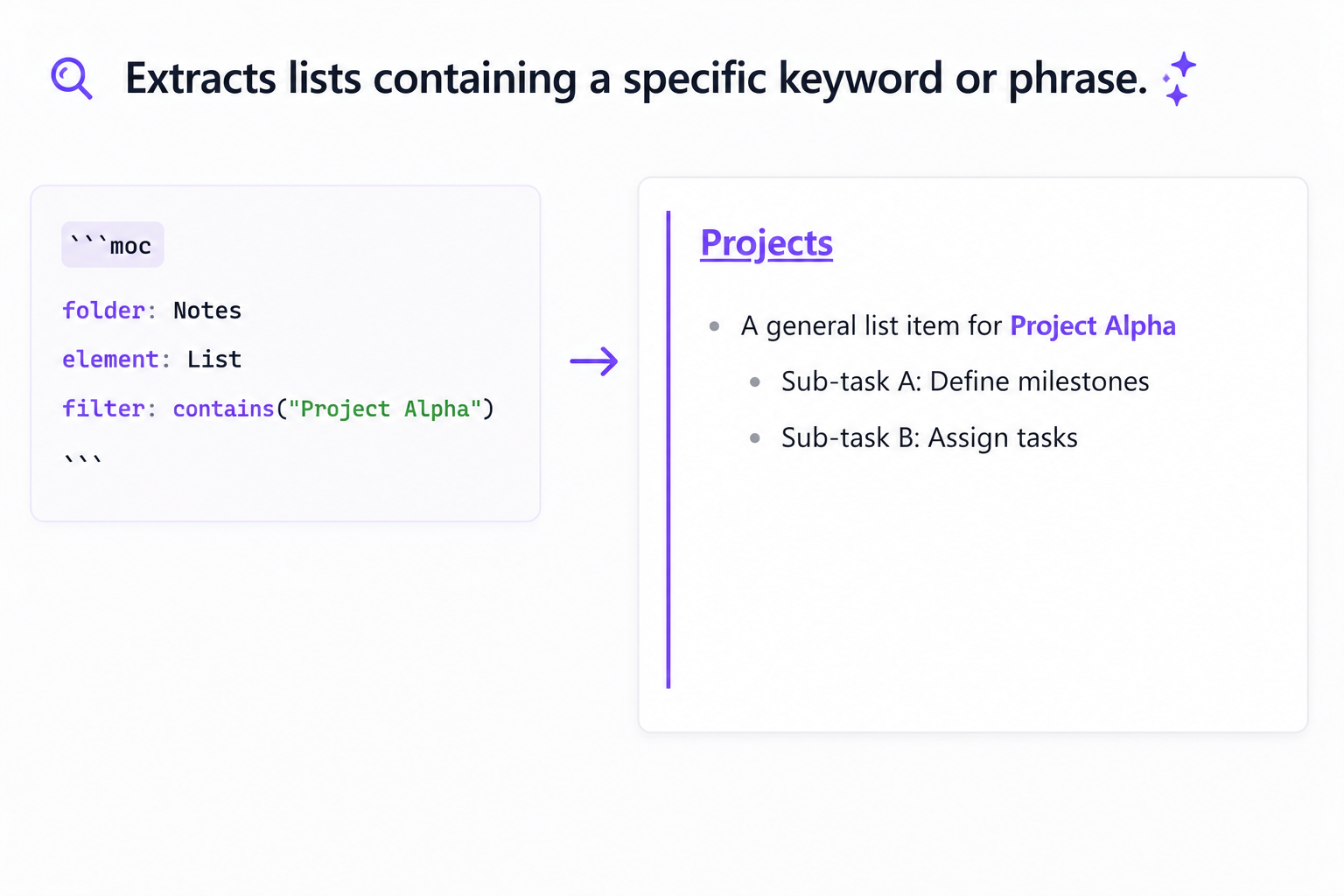
-
- Regular expressions:
matches("regex_pattern"): Evaluates the element using a regular expression match. Supports optional slash-delimited format with flags, e.g.matches("/pattern/i").
- Tags:
has_tag("#tag"): Evaluates if the element contains the specified hashtag (fully tag-aware, case-insensitive, and matches subtags like#tag/subtag).
- Tasks (only when
elementisTaskorList):-
is_completed(): Matches completed tasks. -
is_incomplete(): Matches incomplete tasks.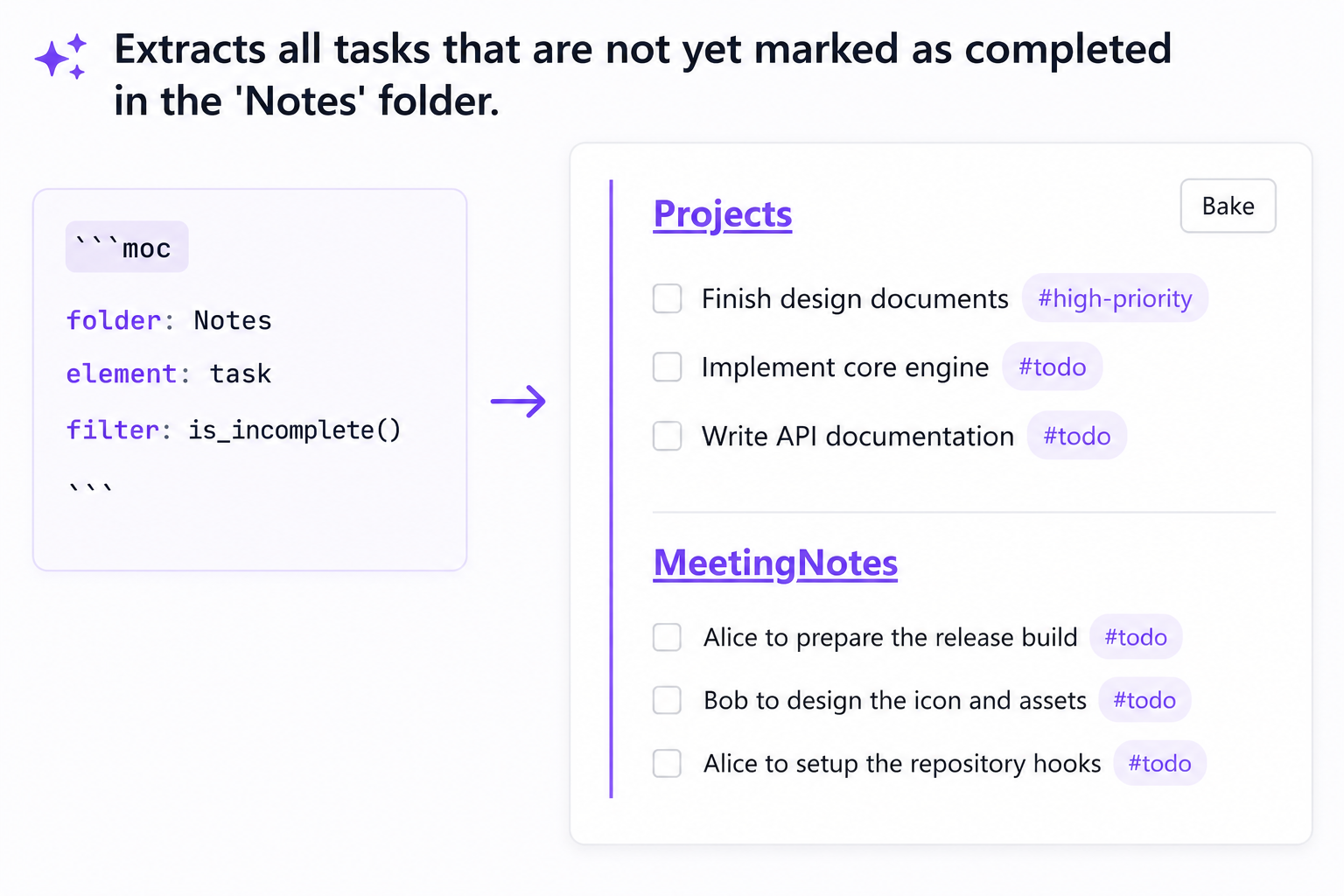
-
- Frontmatter properties:
-
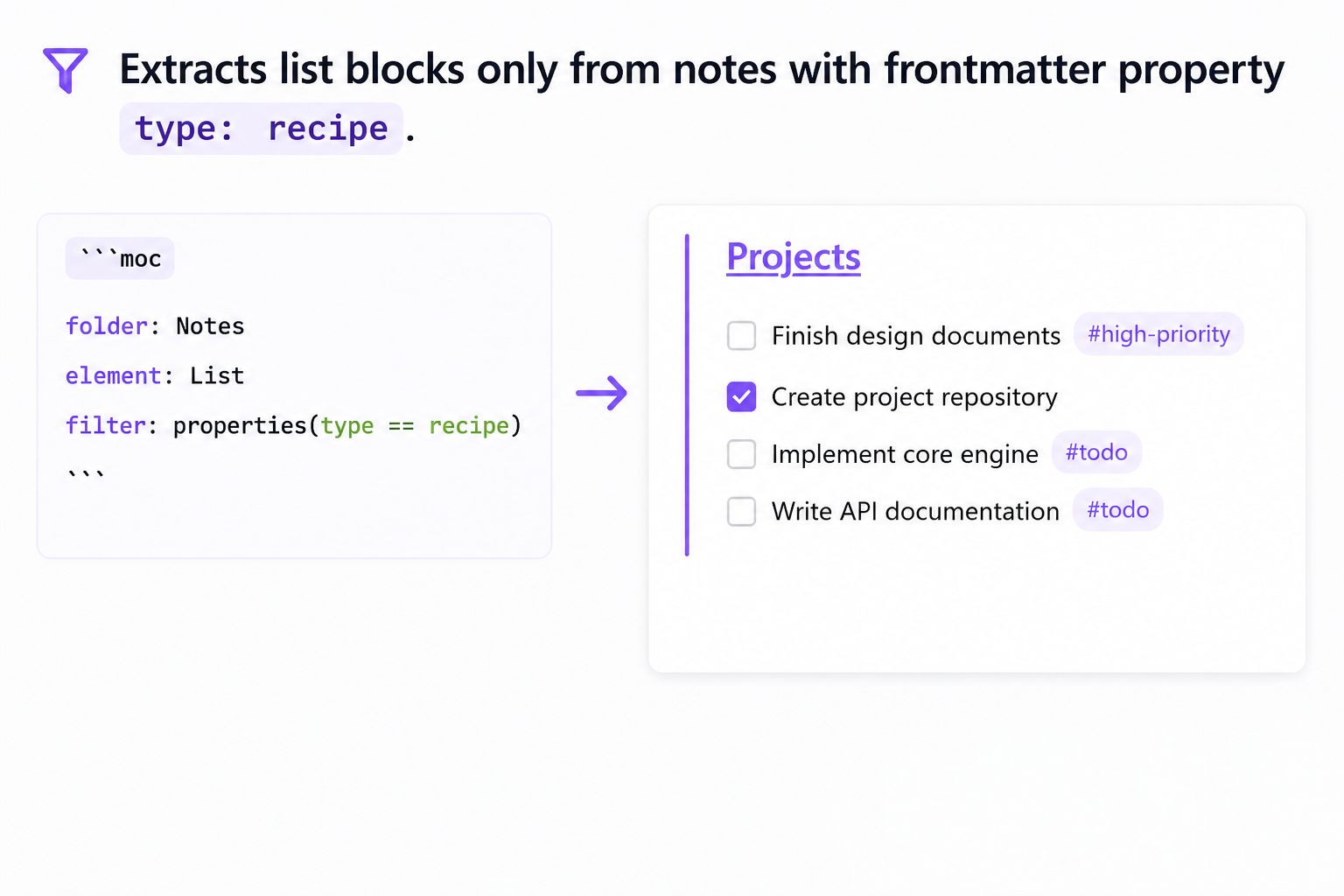
properties(key == value): Matches files where the frontmatter propertykeyequalsvalue. -
Supported operators:
==,!=,>,<,>=,<=. -
Numeric values are compared numerically; ISO date strings (
YYYY-MM-DD) are compared as dates; all other values are compared as strings. -
Examples:
properties(status == "active")properties(priority <= 2)properties(date >= "2024-01-01")
-
Complex logical expressions:
Combine primitive conditions using AND, OR, and NOT. Use parentheses to enforce precedence.
Example: filter: contains("MOC") AND NOT (is_completed() OR has_tag("#todo"))
recursive (Optional)
A boolean determining whether subfolders of the target folder should also be searched.
- Values:
trueorfalse(defaults tofalse).
groupBy (Optional)
Groups the extracted elements under subheadings.
- Values:
folder: Groups elements by their source note's folder.cday: Groups elements by their source note's creation date (YYYY-MM-DD).mday: Groups elements by their source note's modification date (YYYY-MM-DD).tag: Groups elements by the hashtag(s) found inside the element's text (elements with no tags fall under "Untagged").property(key): Groups elements by the value of the specified frontmatter property key. Elements from notes where the property is missing or empty are grouped under(none).- Example:
groupBy: property(status)
sort (Optional)
Sorts the matching source notes before processing and extracting elements.
- Format:
<field> <direction> - Fields:
name(filename),ctime(creation date),mtime(modification date) - Directions:
asc(ascending),desc(descending) - Example:
sort: mtime desc
fileLimit (Optional)
Limits the maximum number of markdown files scanned. Must be a positive integer. This is the only limit that reduces work: files beyond it are never read.
- Example:
fileLimit: 10
fileOffset (Optional)
Skips the specified number of files at the start of the (sorted) file list before scanning. Must be a non-negative integer. Use with fileLimit to page through notes.
- Example:
fileOffset: 5
blockLimit (Optional)
Limits the maximum number of matched elements shown in total, across all files. Must be a positive integer.
This is usually what you want. fileLimit: 20 means "look at 20 notes"; blockLimit: 20 means "show me 20 results".
- Example:
blockLimit: 20
blockOffset (Optional)
Skips the specified number of matched elements before showing results. Must be a non-negative integer. Pair it with blockLimit to paginate results rather than files.
- Example:
blockOffset: 20withblockLimit: 20shows results 21–40.
blocksPerFile (Optional)
Limits how many matched elements are taken from any single note, keeping the first ones in document order. Must be a positive integer.
Use it alongside blockLimit so that one busy note cannot fill the whole result window and hide every other note.
- Example:
blocksPerFile: 3
limit / offset (Deprecated)
limit and offset are the original names for fileLimit and fileOffset and continue to work unchanged. Prefer the explicit names in new blocks — limit counts files, which is easy to misread as counting results. If both are given, the explicit key wins.
showCount (Optional)
When set to true, appends a result count summary at the bottom of the MOC block (e.g. 3 results in 2 files). When groupBy is active, each group heading also shows the number of elements in that group.
If blockLimit, blockOffset or blocksPerFile trimmed the results, the summary reports both numbers (e.g. 20 of 137 results in 8 files) so a limited view never understates the total.
- Values:
trueorfalse(defaults tofalse). - Example:
showCount: true
excludeFolder (Optional)
Explicitly excludes one or more folders from the search results, even when they fall within the configured folder and recursive: true is set. Paths are relative to the vault root.
- Format: a single string or a JSON array of strings.
- Example (single):
excludeFolder: Projects/Archive - Example (multiple):
excludeFolder: ["Projects/Archive", "Templates"]
excludeFile (Optional)
Explicitly excludes one or more files from the search results. Paths are relative to the vault root and can be specified with or without the .md extension.
- Format: a single string or a JSON array of strings.
- Example (single):
excludeFile: Projects/Template - Example (multiple):
excludeFile: ["Projects/Template", "Daily/2024-01-01"]
template (Optional)
The name of a template note (not inline text) used to define a custom output format for each matched element. The template is applied after any applyFnR transformations.
Templates are resolved against the Template folder configured in Settings → Maps of Content. To use a template:
- Set a Template folder in the plugin settings (e.g.
Templates). - Create a note inside that folder whose content is the format string, using handlebars-style
{{placeholder}}syntax — for example a note namedbullet-link.mdcontaining- {{content}} — [[{{path}}|{{file}}]]. - Reference the note's basename (without
.md) in thetemplatekey:template: bullet-link.
Available placeholders (used inside the template note's content):
| Placeholder | Value |
|---|---|
{{content}} | The matched element text |
{{file}} | Source file basename (without extension) |
{{path}} | Source file path relative to vault root |
{{link}} | Wiki-link to the source file: [[path|basename]] |
- Example:
template: bullet-link(whereTemplates/bullet-link.mdcontains- {{content}} — [[{{path}}|{{file}}]])
Note: If a template rewrites the matched text, task checkboxes in the output render read-only. See Interactive tasks.
applyFnR (Optional)
Applies reusable Find & Replace rules defined in the plugin's settings to the matched block contents. Can be a single rule name string or a JSON array of rule names. If an array is provided, the rules are applied sequentially in the specified order.
- Format:
stringorstring[] - Example (single):
applyFnR: clean-headers - Example (chain):
applyFnR: ["strip-comments", "clean-headers"]
Note: If a rule rewrites the matched text, task checkboxes in the output render read-only. See Interactive tasks.
blockSeparator (Optional)
Defines the separator rendered between different matched blocks extracted from the same note.
- Values:
none(default): Blocks are joined directly (useful for joining consecutive lists).divider: A horizontal rule---is inserted between blocks.newline: A blank line is inserted between blocks (useful for separating paragraphs).
- Example:
blockSeparator: newline
noteSeparator (Optional)
Defines the separator rendered between block groups from different notes.
- Values:
newline(default): A single empty line separates note sections.divider: A horizontal rule---is inserted between note sections.none: Note sections are joined directly without extra spacing.
- Example:
noteSeparator: divider
Dynamic Parameters
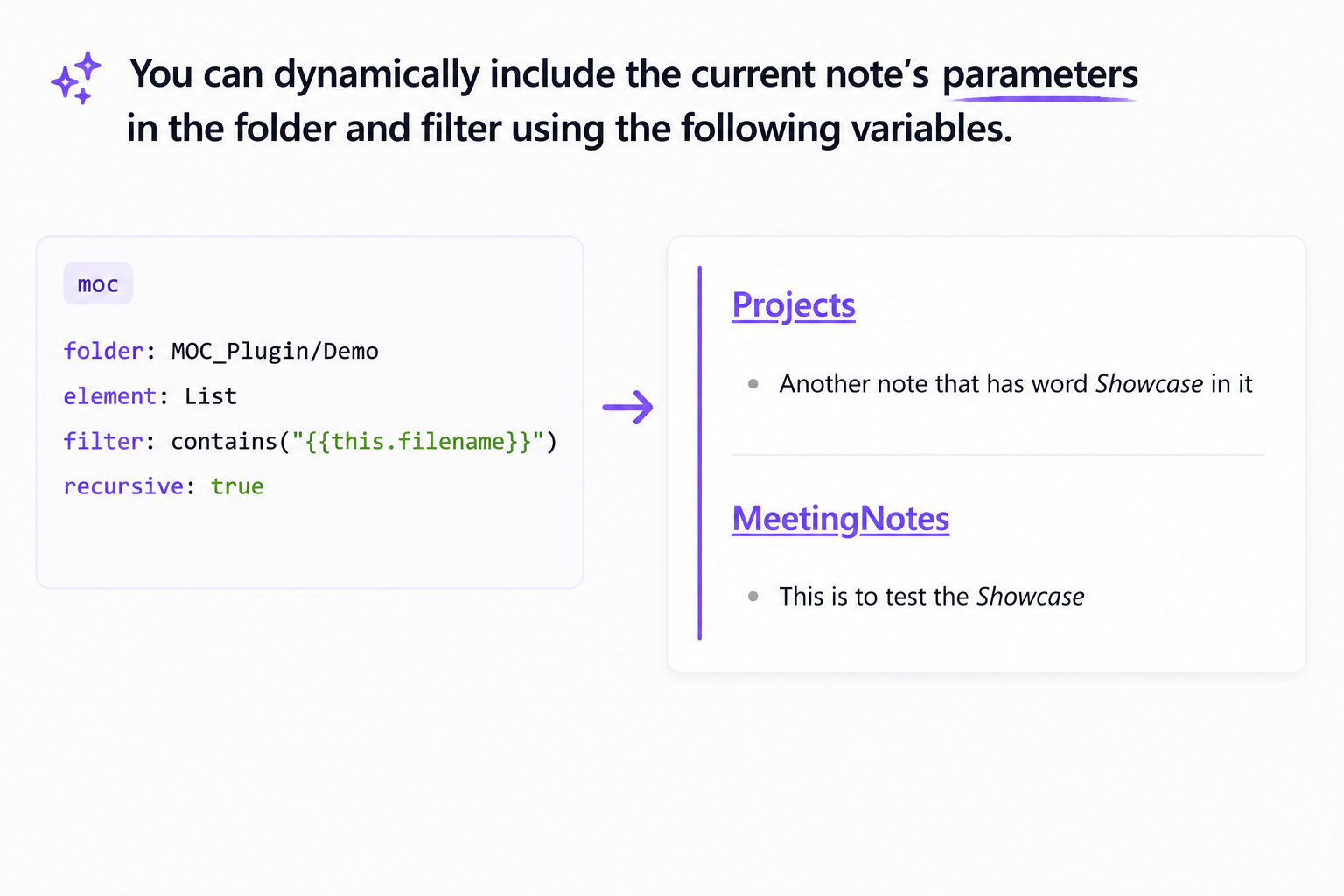
You can dynamically include the current note's parameters in the folder and filter options using the following variables:
{{this.filename}}: Expands to the current note's name (without the.mdextension).{{this.folder}}: Expands to the name of the folder containing the current note.{{this.path}}: Expands to the full path of the current note (without the.mdextension).
For example, to list elements from the Diary folder that contain the current note's name:
```moc
folder: Diary
element: List
filter: contains("{{this.filename}}")
recursive: true
```