What is Gallery View
Gallery View is an Obsidian plugin that lets you create interactive image galleries directly in your vault notes using obs-gallery code blocks.
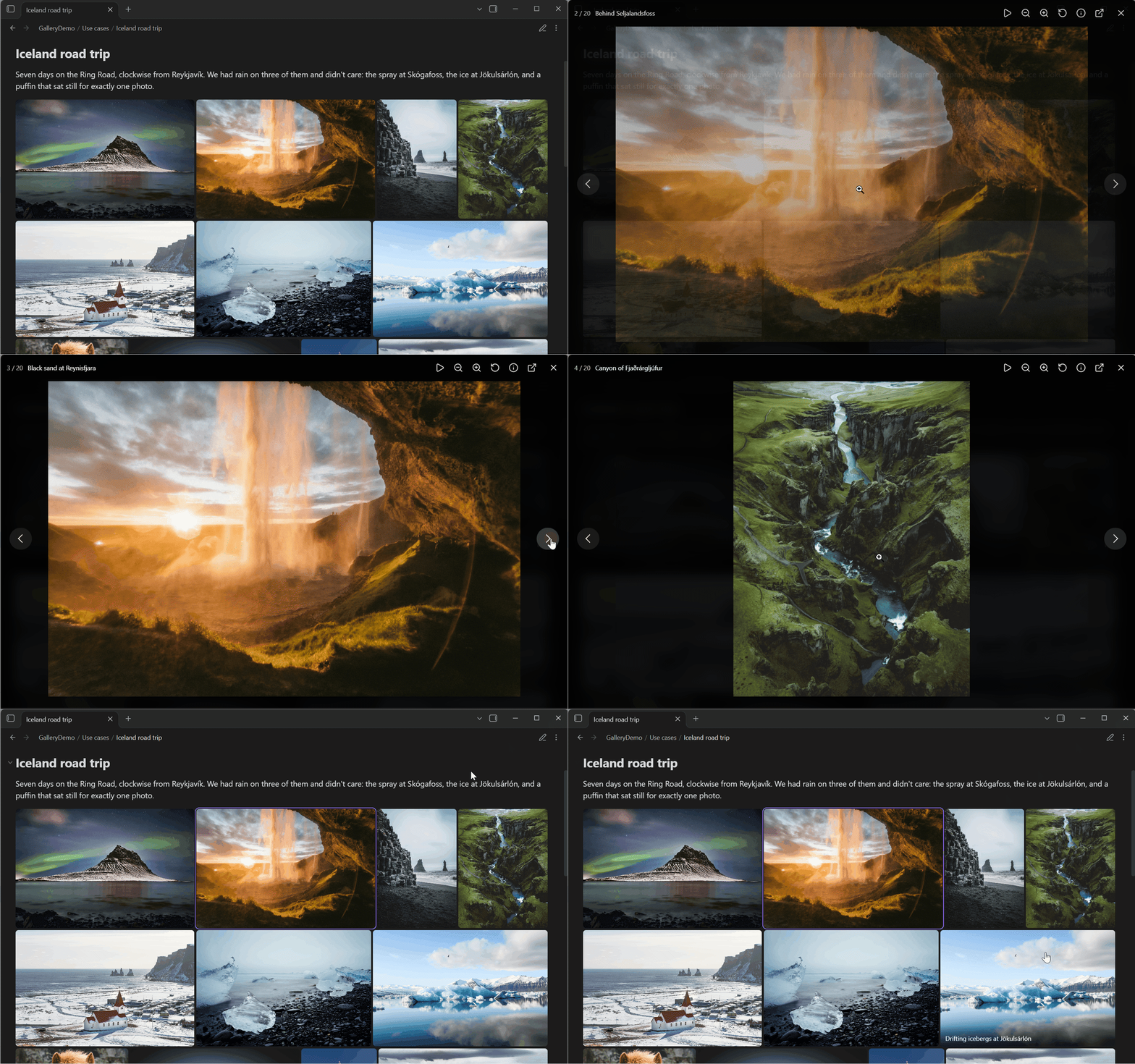
Features
- Display images in thumbnail grids, carousels, masonry columns, justified rows, or a mosaic of large and small tiles
- Click any image to open a full-size viewer with a slideshow, zoom and image details
- Scan folders recursively for large collections
- Load images from external URLs, Immich, or Nextcloud (shared links and authenticated connections)
Supported Source Types
The plugin supports multiple image source types today:
- Local vault images (
local) — load images from folders and files in your vault. - External URLs (
external) — load images from remote URLs. - Immich shared links (
immich-share) — load images directly from public Immich shares without any account configuration. - Immich authenticated (
immich) — connect to your personal Immich library using an API key to display albums, favorites, recent assets, and more. - Nextcloud shared links (
nextcloud-share) — load images directly from public Nextcloud folder share links or Photos app public albums. - Nextcloud authenticated (
nextcloud) — connect to your Nextcloud instance via WebDAV using app password credentials to display folders with filtering, globs, and subfolder scanning.
Quick Example
The plugin uses a sources + view configuration model inside an obs-gallery block. Here is a simple example:
```obs-gallery
sources:
  - type: local
    path: Photos/Vacation
view:
  type: thumbnail
```
Editor Tools
Gallery View includes built-in editor tools to make writing gallery blocks faster:
Insert Gallery (Builder Modal)
Instead of writing YAML by hand, use the Gallery View: Insert gallery command from the command palette. This opens an interactive modal where you can:
- Choose a view type (Thumbnail, Carousel, Masonry, Justified, Mosaic, Embed)
- Enable pagination for large collections, and set the images per page and whether the page controls sit above or below
- Add and configure one or more sources using form fields
- Preview the generated YAML in real time before inserting it.
Build Custom Mosaic
The Gallery View: Build custom mosaic command opens an editor for mosaic patterns: drag across cells to merge them into large tiles, leave cells blank, and save the pattern by name. A mosaic gallery then uses it with pattern: and that name. See Mosaic view.
YAML Autocomplete
When your cursor is inside an obs-gallery code block, Gallery View provides IntelliSense-style completions for:
type:— suggests valid source types (local,external,immich,immich-share,nextcloud,nextcloud-share)connection:— suggests your configured Immich and Nextcloud connection keysview:— suggests valid view typespattern:— suggests your saved mosaic patternsfit:— suggestscroporcontainfor mosaic galleriesassetType:— suggestsimageorvideosort.order:— suggestsascordesc- List items inside
albumIds,tags, orpeople— fetches live data from your Immich server
The Showcase Generator
If you want a hands-on way to explore the plugin's features, Gallery View includes a built-in showcase generator.
From the Obsidian command palette, run Gallery View: Create showcase notes. This will generate a safe-to-edit GalleryDemo/ folder in your vault containing working examples of local sources, views, external URLs, and templates for Immich sharing.
It also includes a Local test lab note backed by a GalleryDemo/_assets/ folder of generated images. The images vary in aspect ratio, size and format (PNG, JPEG, WebP, animated GIF, AVIF, SVG), and the folder includes awkward file names, a deliberately broken file, and a bulk set for pagination. Use it to check how each view handles real-world variety before pointing a gallery at your own folders.
Where to go next
- Installation — how to install the plugin
- Gallery block syntax — how to configure the code blocks
- Sources — see all supported image sources
- Views — see all supported view types
- Gallery Builder — insert galleries without writing YAML