Commodities Tab
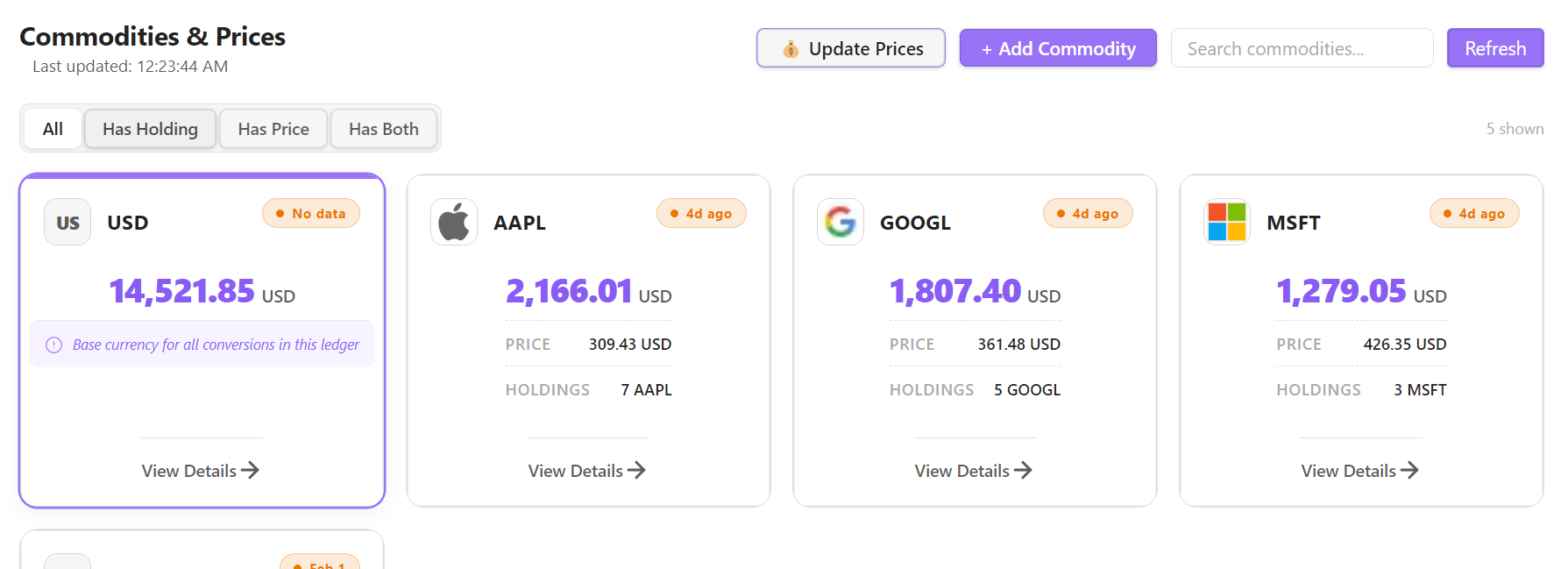
The Commodities Tab manages all currencies and assets used in your Beancount ledger—from stocks and crypto to forex and commodities.
🪙 Features
Commodity Overview
View all commodities declared in your ledger with:
- Symbol: Ticker or commodity code (e.g.,
AAPL,BTC,EUR). - Latest Price: Most recent price point with date.
- Status Pill: Shows LIVE (green) if the latest price point is current, or the relative time since the last recorded price (e.g. "3d ago") if it's stale.
🔍 Search and Filters
The top control bar allows you to quickly query and filter down your list of commodities:
- Search Input: Filter commodities by typing their symbol.
- Filter Pill Dropdown:
- All Commodities: Shows every commodity declared in the ledger.
- Has Holding: Displays only commodities that have a non-zero holdings balance (plus the operating currency).
- Has Price: Displays only commodities that have recorded price data.
- Has Both: Displays only commodities with active holdings AND available price data.
💰 Updating Prices & Adding Commodities
- 💰 Update Prices Button: Instantly triggers the price fetcher (
bean-price) to retrieve and update the latest market values for all commodities configured with automated price sources. - + Add Commodity Button: Open a form to declare new commodities, define their metadata, and configure automated price fetching sources (e.g., Yahoo Finance).
💳 Operating Currency Card
The operating currency defined in your ledger (e.g., USD or INR) is highlighted with a distinct accent border and displays a helper message: "Base currency for all conversions in this ledger".
⚙️ Metadata Management
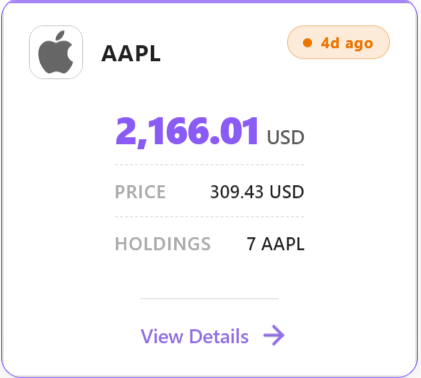
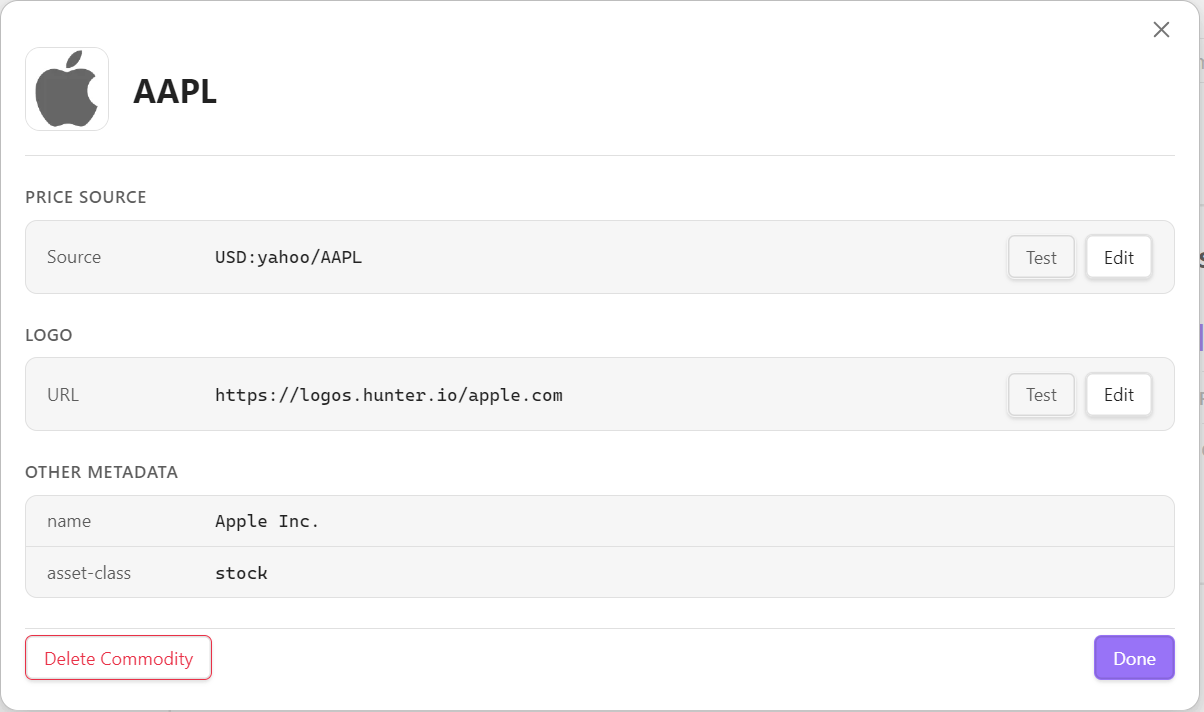
Click a commodity's card to open its detail view, where you can configure:
- Price Source: The fetch source string (e.g.,
yahoo/AAPLfor Yahoo Finance), editable in place with a Test button. - Logo/Icon URL: Custom image URL for the commodity, editable in place with a Test button.
- Price history is also shown as a chart.
Note: the name (display name) metadata key is shown on the card when present, but there's no UI field to set it — add it by editing the commodity directive directly in the .beancount file.
Price Validation
- Test: Runs
bean-pricein the background to verify the price source can actually fetch a quote, and shows the result inline.