Image viewer
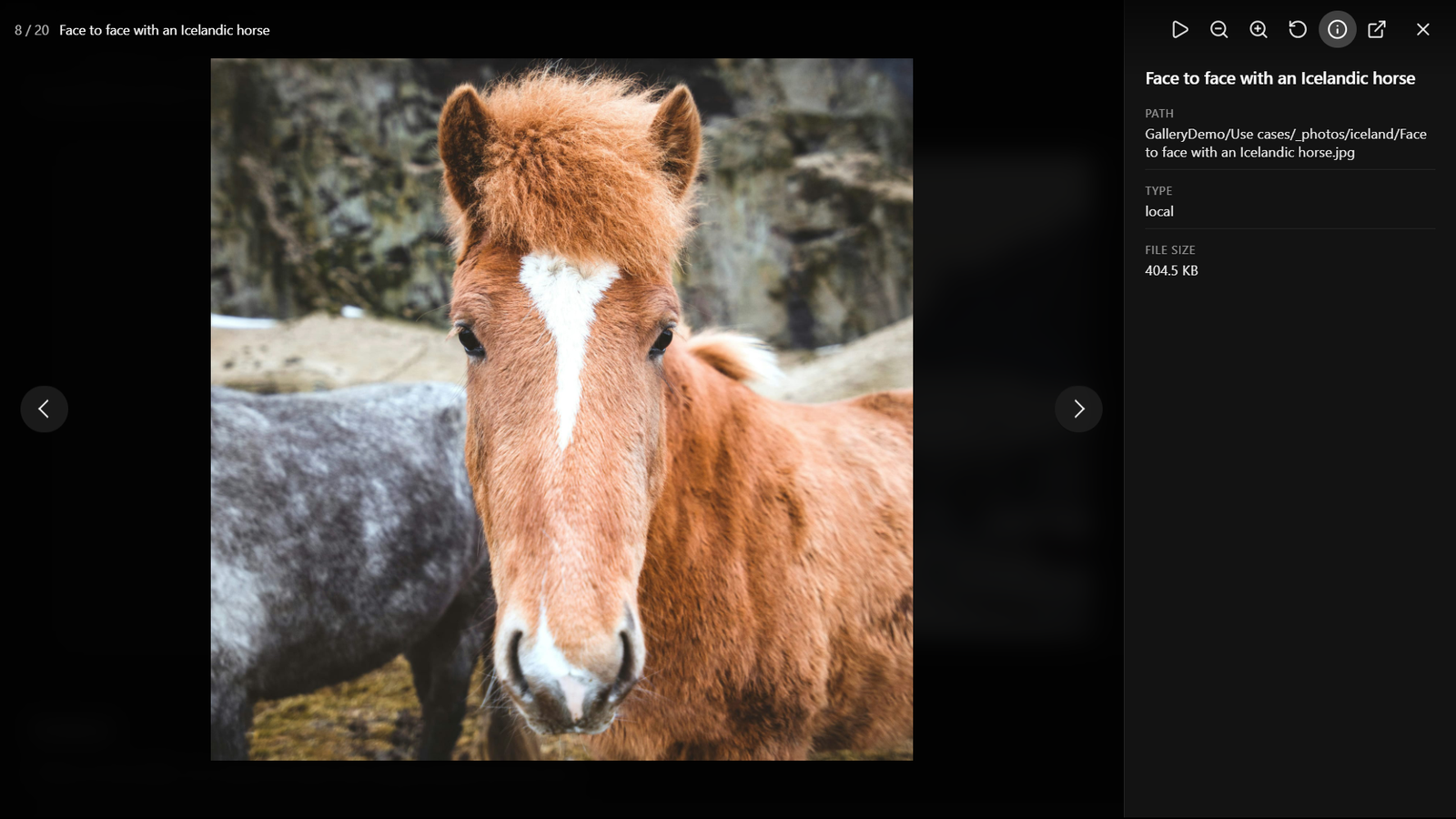
Click an image in any view (or focus it and press Enter or Space) to open it full size in the image viewer. The viewer steps through every image in the gallery, including those on other pages when pagination is on, and wraps around at the ends.
The viewer fills the screen with the photo on a dark background. The top bar shows where you are (for example 3 / 24) and the file name, and the image's caption, if it has one, appears under the photo. The bar and arrows fade away after a few seconds without moving the mouse, and come back as soon as you move it or press a key.
For Immich and Nextcloud galleries, the viewer first shows the small image the gallery already loaded, then switches to a sharper one as soon as it has downloaded: Immich's preview size (about 1440 pixels), or a 2048-pixel Nextcloud preview. The images either side are fetched in the background, so stepping through is quick.
Controls
| Control | Action |
|---|---|
| The arrows on the sides, ← / →, or a swipe on a touch screen | Previous / next image |
| Play / Pause | Start or pause a slideshow (4 seconds per image; change it with Slideshow interval in Settings). Moving to another image by hand pauses it. |
| Zoom out / Zoom in, the mouse wheel over the image, or a pinch on a touch screen | Zoom out / in. On narrow screens the two buttons are hidden; pinch to zoom instead. |
| Double-click the image | Zoom in, or back to the whole image |
| Drag the image (one finger on a touch screen) | Move around a zoomed image |
| Reset zoom | Back to the whole image |
| Details (ⓘ) | Show or hide the details panel: name, path, source type, caption, and size when known. For photos it also shows when the photo was taken, the camera and the lens, from the photo's EXIF data (local files) or from Immich, and when a vault or Nextcloud file was last modified. Videos show their length. Details a photo doesn't have are left out. |
| Open or save image | Open the image in a new tab, or save it, at the size the viewer shows |
| Close (✕), Esc, or a click on the dark area around the photo | Close the viewer |
Galleries with a single image have no arrows or slideshow button. SVG images are scaled to fill the screen, since they stay sharp at any size.
Videos
Videos play in the viewer with the usual player controls (play, seek, volume, full screen), starting on their own. While the video downloads or opens, its still frame shows. Zoom doesn't apply to videos, so the zoom buttons are hidden. ← / → change video unless the player has focus (then they seek), and swipes on the player itself don't change video. During a slideshow a video plays to the end before the next item.
If the player can't decode a video (a WebM file in an older Safari, or an HEVC .mov on some computers), the viewer shows its still frame with a short message, and for Immich and Nextcloud videos an Open in Immich / Open in Nextcloud button. Immich serves WebM videos as an MP4 copy, so they play everywhere.
Leaving a video stops it. An Immich or Nextcloud video is downloaded when you open it and let go of when you move on. Nextcloud doesn't report how long a video is, so its tile shows the length once you have played it.
Large videos
- Vault videos play straight from disk, at any size.
- Immich and Nextcloud videos have to be downloaded in full before they play, so ones larger than Largest remote video to play (200 MB by default, in Settings) aren't downloaded. The viewer shows the still frame, the video's size and an Open in Immich or Open in Nextcloud button, which opens it in your browser (for a Nextcloud share link, the share's page). Set the limit to
0to play every video.
Keyboard in the gallery
- Thumbnail view: ← / → move between tiles; Enter or Space opens the focused one.
- Masonry, justified, mosaic and embed views: Tab moves between images; Enter or Space opens one.
- Carousel view: with the carousel focused, ← / → change the slide. You can also use the arrow buttons, the dots under the slides, or swipe on a touch screen.
Right-click menu
Right-click a photo or video from your vault in any view for Obsidian's usual file menu: Open in new tab, Open to the right, Rename and Delete, plus the items Obsidian's core plugins and other plugins add for files, such as Open in new window, Copy path, Reveal file in navigation and Open in default app. Photos and videos from Immich, Nextcloud and external URLs aren't vault files, so they get a shorter menu: Open in Immich, Open in Nextcloud or Open in browser opens the photo's page in your browser, and Copy link copies that link. For a Nextcloud share link, both use the share itself. Open in Immich opens Immich in your browser, so you need to be signed in there as the account your API key belongs to; signed in as anyone else, Immich says the photo isn't found. Photos from an Immich shared link open without signing in. The menu isn't available inside the image viewer itself: close the viewer and right-click the photo in the gallery.
Captions
With captions on, they show under each image. With captions off, a caption appears over the bottom of an image only while you hover over it or focus it with the keyboard, and not at all on touch screens. Captions also appear in the image viewer's details (ℹ️). Where they come from:
| Source | Caption |
|---|---|
external | The caption of a { url, caption } entry, otherwise the file name |
immich, immich-share | The photo's description in Immich, otherwise the file name |
local, nextcloud, nextcloud-share | The file name |
Turn captions on or off, or change how many lines they may use, in Settings. A gallery can override the setting with captions: true or captions: false in its view: block.