Editing the .beancount Files
While the plugin UI simplifies many actions, you can edit your .beancount files directly inside Obsidian. The plugin embeds a full-featured code editor optimized for the Beancount format.
💻 Professional Code Editor
When you open a .beancount file in Obsidian, the default textarea is replaced with a CodeMirror 6 EditorView. This provides:
- Line numbers in the left margin.
- Active-line highlighting.
- Full undo/redo history.
- Native find and replace (
Ctrl/Cmd + F). - Smooth scrolling and tab key support.
🎨 Beancount Syntax Highlighting
The editor utilizes a custom Lezer grammar compiled specifically for Beancount files. It provides theme-adaptive syntax highlighting:
- Dates, account names, currencies, and amounts are automatically color-coded.
- Directives (such as
open,close,commodity,price), string literals, metadata keys, tags (#), links (^), transaction flags, and comments (;) are clearly styled. - Styles map directly to Obsidian's default CSS variables, adapting to both Light and Dark themes seamlessly.
⚡ Context-Aware Autocomplete
The autocompletion system is active in .beancount files, offering smart suggestions based on where your cursor is positioned. Suggestions are cached for 30 seconds to ensure typing remains fluid.
- Account Name Autocomplete: Type any account prefix (e.g.
Assets:,Expenses:Food) in a posting line to trigger a popup listing your active open accounts. Suggestions are sorted by usage frequency. Suppressed in comments and strings. - Payee Autocomplete: Sourced from your ledger's payees. Triggered inside the first set of double quotes in a transaction header (e.g.,
2026-05-30 * "). - Description (Narration) Autocomplete: Sourced from your ledger's descriptions. Triggered inside the second set of double quotes, optionally filtered by the payee you just typed.
- Currency/Commodity Autocomplete: Triggered after typing a numeric amount or after
commodity,price, andbalancedirectives. Sourced from your active commodities. - Tags & Links Autocomplete: Triggered after typing
#(for tags) or^(for links) in a transaction header.
You can toggle these options in Settings → Editor.
📝 Snippet Templates
To speed up manual data entry, you can use trigger keywords at the beginning of a line. Type the keyword and press Tab to expand a pre-formatted directive template pre-filled with today's date and tab-navigable placeholders:
| Keyword | Expands To |
|---|---|
txn | Transaction directive template |
open | Open account directive |
close | Close account directive |
bal | Balance assertion directive |
pad | Pad directive |
price | Price directive |
note | Note directive |
📋 User-Defined Transaction Snippets
In addition to the built-in system snippets above, you can define your own reusable transaction templates for quick expansion:
- Stand-alone Snippets File: User-defined templates are loaded from a dedicated
snippets.beancountfile stored in your root structured folder layout. When you toggle the feature on in Settings → Editor, this file is automatically generated with asampleSnippettemplate if it is missing. - Autocompletion Trigger: Start typing the name of a custom snippet at the beginning of any empty line in a
.beancountfile to trigger the autocomplete suggestion popup. Selecting a snippet will populate it instantly. - Real-time Cache Reloading: The plugin watches
snippets.beancountfor changes. Any updates or new templates saved to the file are automatically loaded in memory without requiring a plugin reload or Obsidian restart. - Command Integration: You can open the command palette (
Ctrl/Cmd + P) and execute the "Open Beancount snippets file" command to quickly open your snippets file for editing.
🧮 Smart Indentation & Formatting
Managing whitespace is crucial in plain-text accounting. The editor handles this automatically:
- Smart Indentation: Pressing Enter after a posting or directive line automatically indents the new line with 2 spaces.
- Format Document Command: Press
Ctrl/Cmd + Shift + F(or run "Format Beancount document" from the Command Palette) to clean up the file:- Normalizes all posting indentations to exactly 2 spaces.
- Right-aligns numerical amounts within each transaction block for clean visual alignment.
- Normalizes space around price annotations (e.g.
@or@@).
- Format on Save: You can enable this in Settings → Editor to format files automatically whenever they are saved.
🔍 Inline Linting & Diagnostics
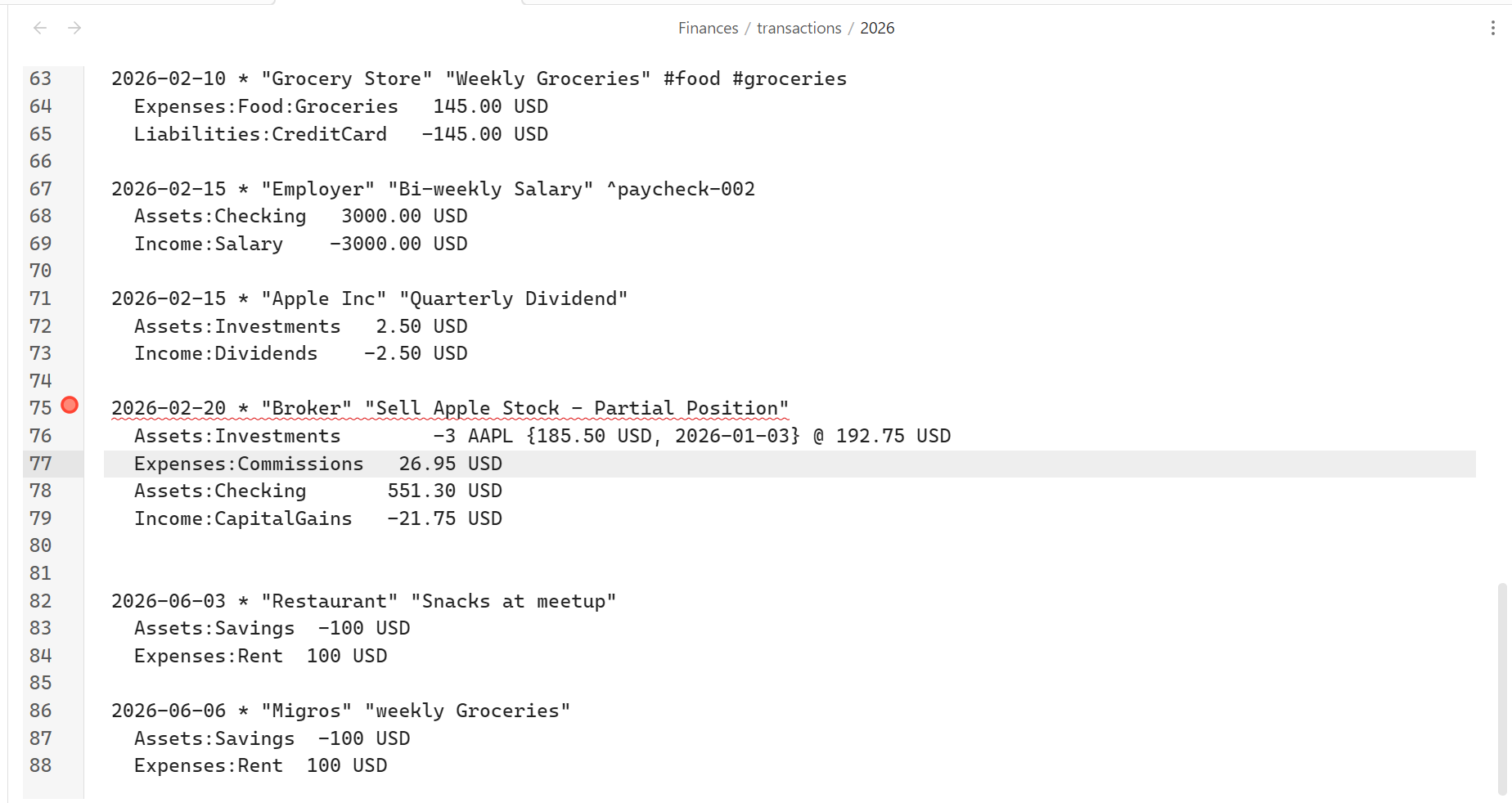
You don't need to switch to a terminal or run a separate bean-check tool to check for syntax errors. The plugin automatically runs background diagnostics using your bean-query engine:
- Visual Indicators: Validation errors appear with red squiggly underlines under the affected code.
- Gutter Markers: A red indicator appears in the left gutter next to lines containing errors.
- Detailed Information: Hovering your cursor over the red squiggle or gutter marker displays the full error message returned by Beancount.
- Non-Blocking: The linter runs asynchronously and will not block your typing.
Linter Modes
Configure how diagnostics are run in Settings → Editor:
- Off: Disables inline diagnostics.
- On save (Default): Runs the validation immediately after you save the file (with a ~500ms delay).
- On change: Runs continuously while you edit (with a debounced 2-second delay to avoid performance lag).