Snapshot View
The Snapshot View is a persistent sidebar widget that gives you at-a-glance financial awareness while you work in your notes.
👁 Features
File Status Indicator
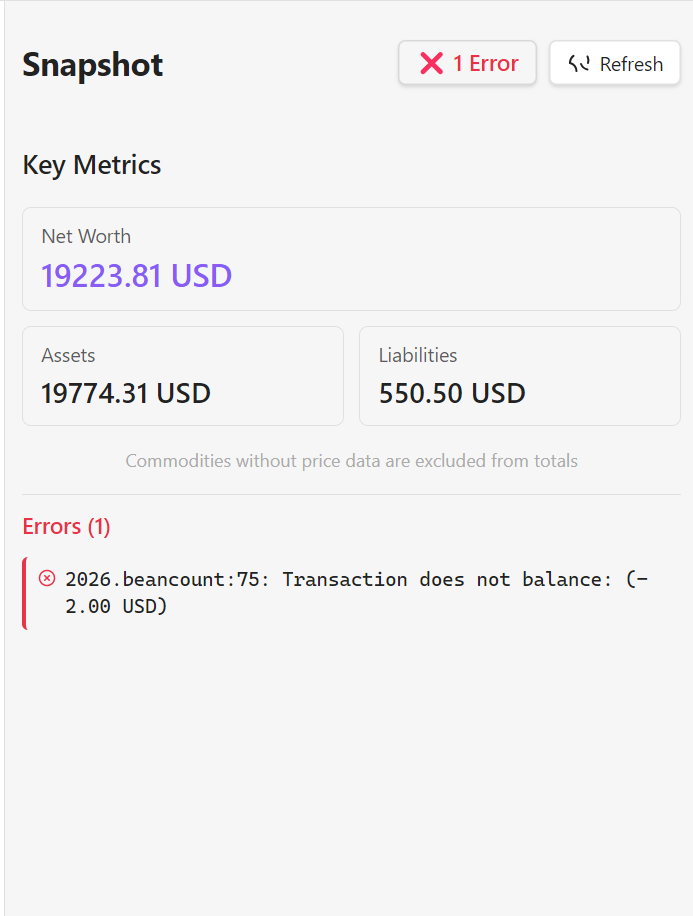
The status button at the top shows the health of your Beancount file:
- ✅ OK — File is valid, no errors detected.
- ❌ N Errors — Click to see a notification with the full error message list.
- Checking… — Validation is currently in progress.
Key Metrics
Displays three high-level financial indicators pulled directly from your ledger:
- Net Worth — Total position across all Assets and Liabilities accounts, converted to your Operating Currency.
- Assets — Total value of all Assets accounts in your Operating Currency.
- Liabilities — Total value of all Liabilities accounts. Positive numbers represent outstanding debt; negative numbers indicate a credit or overpayment.
All three values are rounded to 2 decimal places and shown in your configured Operating Currency.
Note: Commodities without price data are excluded from the totals. If you hold stocks or crypto without price directives, only the cash portion will be reflected.
Refresh Button
Reloads all KPI values, re-validates the Beancount file, and refreshes reconciliation status on demand.
🐛 Error Diagnostics
When the file status shows errors, an Errors tab below the KPI section lists each validation error individually, in <file>:<line>: <message> form.
Click any error to jump straight to its source: the plugin opens the relevant .beancount file (in a new tab) and scrolls the editor to the exact line, so you can fix it immediately without hunting for it manually.
✅ Reconciliation and 📅 Upcoming Transactions
The Snapshot sidebar has two more tabs, each detailed on their own page:
- Reconciliation — tracks which accounts are overdue for a balance check, and lets you edit intervals, record a balance, or force-fix a failing assertion, all without leaving the sidebar.
- Upcoming Transactions — define transactions that repeat automatically or fire once in the future, and process the ones that have come due.
💡 Usage Tips
When to Use
- Daily note-taking — Keep it open in the sidebar while journaling to quickly reference balances.
- Quick checks — Glance at net worth without opening the full dashboard.
- Context switching — Maintain financial awareness while working on other tasks.
- See the Reconciliation and Upcoming Transactions pages for tips specific to those tabs.
Placement
Access the Snapshot View via:
- Command Palette:
Ctrl/Cmd + P→ "Beancount Ledger: Open Beancount snapshot". - Right Sidebar: Drag and position the view anywhere in Obsidian's layout.