Accounts & Balances
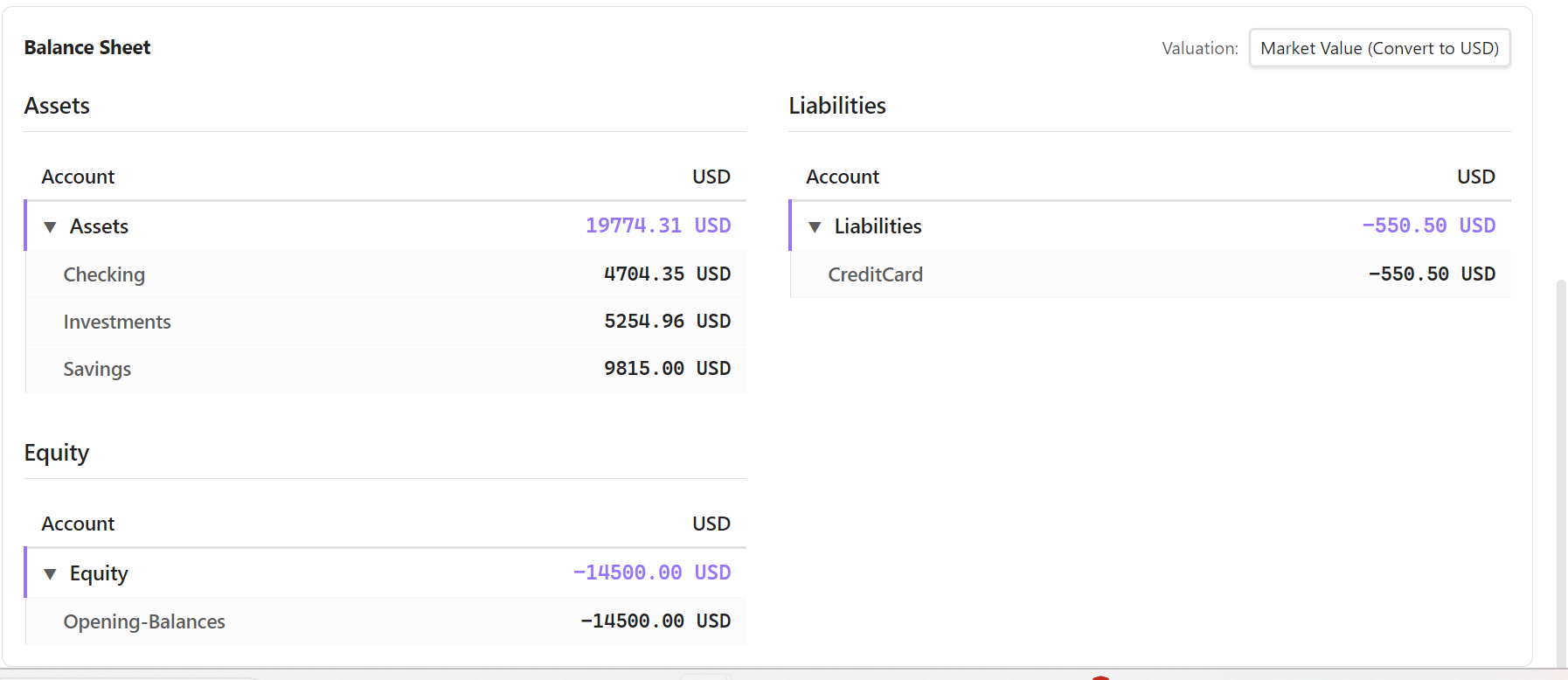
The Accounts & Balances view is the tree-grid representation of your active ledger accounts. It acts as the command center for inspecting your net worth, examining individual account balances, and managing your account list.
📊 Interactive Charts
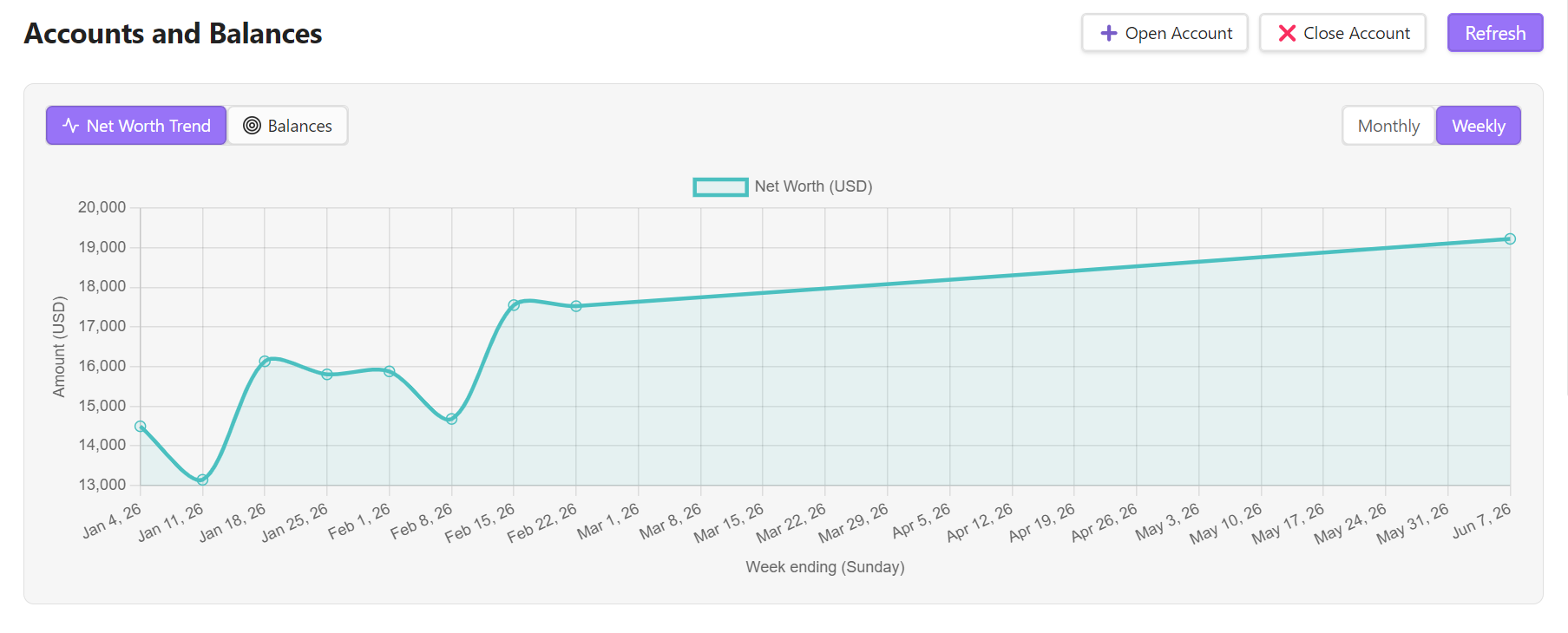
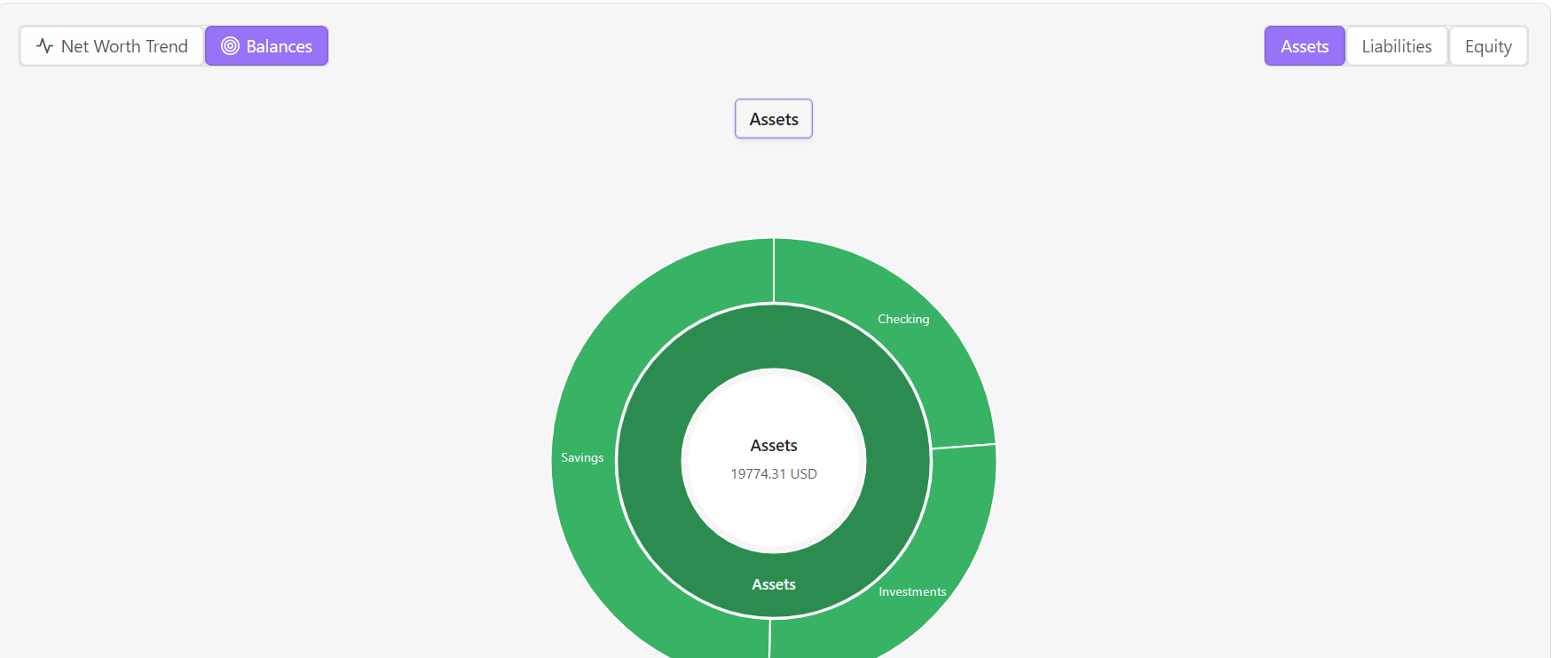
The top portion of the tab provides visual analytics using interactive Custom Pill Dropdown Controls:
- Net Worth Trend: An interactive chart showing your historical net worth over time. Use the purple pill selector to toggle the view ("Net Worth Trend" vs sub-options) and aggregate intervals between Weekly and Monthly.
- Balances (Sunburst Chart): A visual sunburst diagram of either Assets, Liabilities, or Equity. Click on segments to drill down into sub-account distributions.
🏛 Valuation Methods
You can toggle the Valuation dropdown to view balances in three formats:
- Market Value (Convert): Converts all holdings (including commodities like stocks, ETFs, cryptos, or foreign currencies) to your operating currency at the latest recorded market prices using
convert(). - At Cost: Displays holdings at their original cost basis (acquisition cost) using
cost(). - Units: Displays raw counts (e.g.
50 AAPL,1.5 BTC,1000 USD) without any currency conversion usingunits().
🌳 Account Tree Hierarchy
Your accounts are structured hierarchically (e.g., Assets:Checking:Main is a child of Assets:Checking).
Parent-Child Aggregation
- Leaf Accounts: Accounts that receive postings directly from transactions.
- Parent Accounts (Categories): Accounts that group other accounts. Parent account balances automatically display the aggregated sum of their own balance plus all their children's balances.
- This makes it easy to see your total checking assets by looking at
Assets:Checkingeven if you have several sub-accounts.
Collapsible Nodes
- You can click on any parent account row to collapse or expand its subtree.
- The plugin remembers your expansion/collapse state for the current session (e.g. switching to another dashboard tab and back), but it resets the next time you reload Obsidian or reopen the dashboard.
Account Details
- Right-click any leaf account row to open the Account details modal — open/close dates, currencies, and reconciliation status, with the ability to set or change the account's
reconcileinterval on the spot. See Reconciliation for what that status means and the Balance/Force reconcile actions available from the same modal.
➕ Managing Accounts from the UI
You can create or retire accounts directly from this tab without writing plain text directives:
1. Opening a New Account
- Click the ➕ Open Account button in the header.
- Fill in the fields:
- Account Name: Select a parent prefix and append your new sub-account name (e.g.,
Assets:Savings:VacationFund). - Date: Select when this account becomes active (typically the current date or start of the year).
- Allowed Currencies: List comma-separated currencies (e.g.,
USD, EUR) if you wish to restrict the currencies this account can hold (optional). - Reconciliation interval (days): Set an optional interval (e.g.,
30) to track reconciliation health in the Snapshot sidebar.
- Account Name: Select a parent prefix and append your new sub-account name (e.g.,
- Click Open Account. The plugin appends the
opendirective with metadata toaccounts.beancount.
2. Closing an Account
- Click the ❌ Close Account button in the header.
- Select the active account you wish to retire from the dropdown.
- Choose the closing date.
- Click Close Account. The plugin appends the
closedirective toaccounts.beancount.[!NOTE] Beancount doesn't require a zero balance to close an account, and the plugin doesn't check this for you — a closed account simply can't receive new postings. If the account still holds a balance, it's usually best to transfer it out first (e.g. to the account taking over, or an equity account) so the balance doesn't linger unexplained in reports.